
Best Printers That Work Seamlessly with Mac No Driver Issues
If you’ve ever bought a printer, plugged it in, and then spent an hour fighting with driver installers that don’t work properly on macOS, you already know why this matters. The fix is simpler than most buying guides make it sound: look for AirPrint support, and almost every headache disappears.
This guide explains why that matters, then breaks down the best printers that actually work with Mac without driver drama — for home use, office use, and budget setups.
Why Driver Issues Happen on Mac in the First Place
Most printer manufacturers build their driver software primarily for Windows, then release a macOS version as an afterthought. When Apple pushes a major macOS update, those third-party drivers sometimes break, get delayed, or stop being maintained entirely — especially on older printer models.
AirPrint solves this at the source. It’s Apple’s own built-in printing technology, baked directly into macOS, iOS, and iPadOS. AirPrint support lives on the printer’s side, not through a driver you install — so there’s nothing to break when your Mac updates, and nothing to reinstall. If a printer supports AirPrint, your Mac, iPhone, and iPad can all print to it instantly over Wi-Fi with zero extra software.
The one-line rule for Mac buyers: if a printer doesn’t explicitly list AirPrint support, skip it — regardless of how good the specs look on paper.
Best Overall: HP OfficeJet Pro 9125
The HP OfficeJet Pro line has been a long-standing favorite for Mac users specifically because HP tends to be noticeably easier to set up on macOS than most competitors, with AirPrint working reliably out of the box. It handles everyday home-office needs — printing, scanning, copying — without requiring a larger, bulkier business-grade machine.
Good for: Home offices and small teams that need reliable everyday printing without complexity.
Worth knowing: As an inkjet, it can be prone to clogging if left unused for long stretches — worth printing a page every few weeks if usage is occasional.
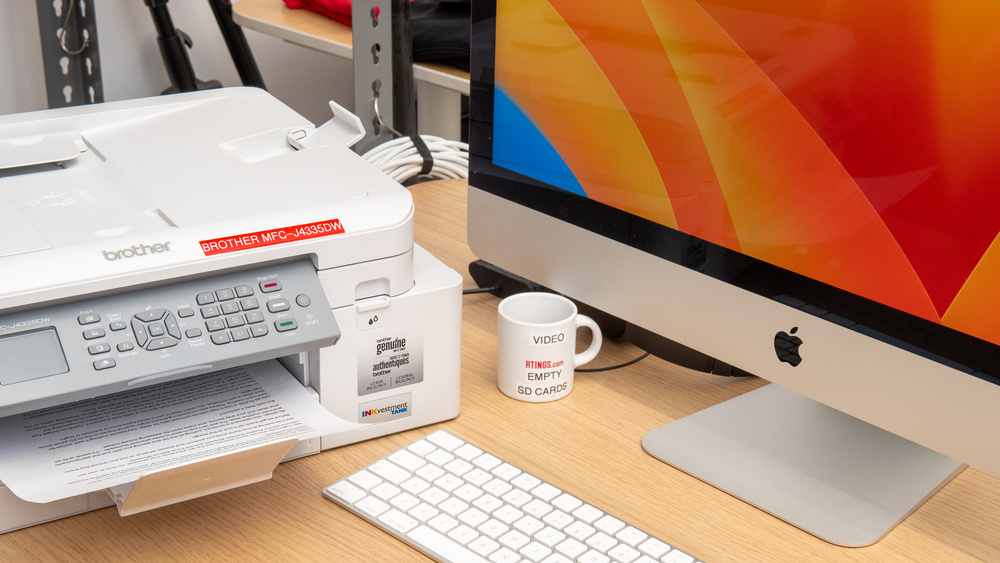
Best for Low Running Costs: Brother MFC-J4355DW
Brother’s laser and inkjet-tank printers are frequently recommended as a lower-cost-per-page alternative to HP, with strong AirPrint compatibility and no driver installation needed for Mac, iPhone, or iPad printing. The tradeoff some reviewers note is that HP tends to be simpler to initially set up, while Brother often wins on long-term running costs and print quality consistency.
Good for: Households or offices that print frequently and want to avoid ongoing cartridge costs.
Best for a Simple, Reliable Home Office: Brother MFC-L2750DW
For buyers who specifically want a “set it up once and never think about it again” experience, Brother’s monochrome laser all-in-one line has built a strong reputation among long-term Mac users precisely for AirPrint reliability across macOS updates — some users report machines lasting well over a decade with the same seamless Apple compatibility. If your main need is documents rather than photos, a monochrome laser like this one is often more dependable than an inkjet.
Good for: Mostly document printing, minimal color photo needs, long-term reliability over flashy features.
Best Budget Pick: HP Envy 6155e / HP Envy 6555e
For light home or student use — printing the occasional document, photo, or form — HP’s Envy line offers AirPrint and wireless connectivity at a lower price point than the OfficeJet Pro series, without sacrificing basic Mac compatibility.
Good for: Students, occasional home printing, budget-conscious buyers.
Best for Long-Term Ink Savings: Epson EcoTank ET-2850
If you print often enough that cartridge costs add up quickly, Epson’s EcoTank line uses refillable ink tanks instead of traditional cartridges, keeping long-term running costs low while still maintaining solid AirPrint compatibility for wireless printing from Mac, iPhone, and iPad.
Good for: Frequent printers who want to avoid subscription ink services or repeated cartridge purchases.
Best for Photo Printing: Canon PIXMA TS702a
For Mac users specifically prioritizing photo quality alongside AirPrint reliability, Canon’s PIXMA line combines a hybrid ink system for accurate color reproduction with straightforward wireless setup — no additional drivers needed to print directly from a Mac, iPhone, or iPad.
Good for: Photography hobbyists, families printing photos regularly, anyone prioritizing color accuracy.
What to Actually Check Before Buying
Beyond AirPrint, a few details make a real difference for long-term Mac compatibility:
- Wi-Fi standard: Look for dual-band Wi-Fi (802.11ac or better) for a more stable connection, especially if the printer sits far from your router
- Ethernet port: Even on a “wireless” printer, having an Ethernet option as backup avoids Wi-Fi dropout headaches entirely
- Manufacturer update history: Brands with a track record of maintaining older printer models for years tend to support new macOS versions longer too — check how long a manufacturer has supported previous printer generations before buying
- Dedicated macOS app availability: Some brands offer their own macOS app for extra scan/print control beyond AirPrint’s basics — nice to have, but never a requirement if AirPrint is present
AirPrint vs Manufacturer App: Which Should You Use?
AirPrint alone handles basic printing perfectly well for most people — documents, photos, PDFs, no installation required. A manufacturer’s dedicated macOS app (like HP Smart or Canon PRINT) adds extra control: ink level monitoring, advanced scan settings, or print quality adjustments. Neither is required to make printing work — AirPrint is the baseline that guarantees compatibility, and the app is an optional convenience layer on top.
Quick Buying Checklist
- Confirm AirPrint is explicitly listed in the printer’s specifications
- Choose dual-band Wi-Fi for connection stability
- Consider a laser printer if you mostly print documents, not photos
- Consider an ink-tank model (EcoTank/Smart Tank) if you print frequently
- Check the manufacturer’s track record for long-term driver/software support
Frequently Asked Questions
Do I need to install drivers to print from a Mac? No, if the printer supports AirPrint. AirPrint is built into macOS and requires no separate driver installation.
Will my printer stop working after a macOS update? If it relies on a third-party driver, possibly. AirPrint-enabled printers avoid this issue entirely since AirPrint support comes from Apple’s side, not a driver you install.
Is AirPrint good enough, or do I need the manufacturer’s app too? AirPrint alone handles standard printing needs. A manufacturer app just adds extra features like ink monitoring — it’s optional, not required.
Are laser or inkjet printers better for Mac users? Neither is inherently more Mac-compatible — it depends on what you print. Laser suits document-heavy use; inkjet or ink-tank models suit photo printing or frequent use.
Can iPhone and iPad print to the same printer as my Mac? Yes — that’s the main advantage of AirPrint. Any AirPrint-enabled printer works across Mac, iPhone, and iPad on the same Wi-Fi network without separate setup for each device.
What’s the biggest mistake Mac users make when buying a printer? Buying based on specs or price alone without confirming AirPrint support — this is what leads to the driver problems this guide is meant to help you avoid.